AR Tasks

MathCityMap tasks can also contain augmented reality elements. This provides MCM users with visual and interactive tools to make the tasks even more interesting. Here is a step-by-step guide to creating AR tasks:

Step 1 – Create Task

Under “Tasks – Create and manage”, click on the plus symbol and on “New task”.

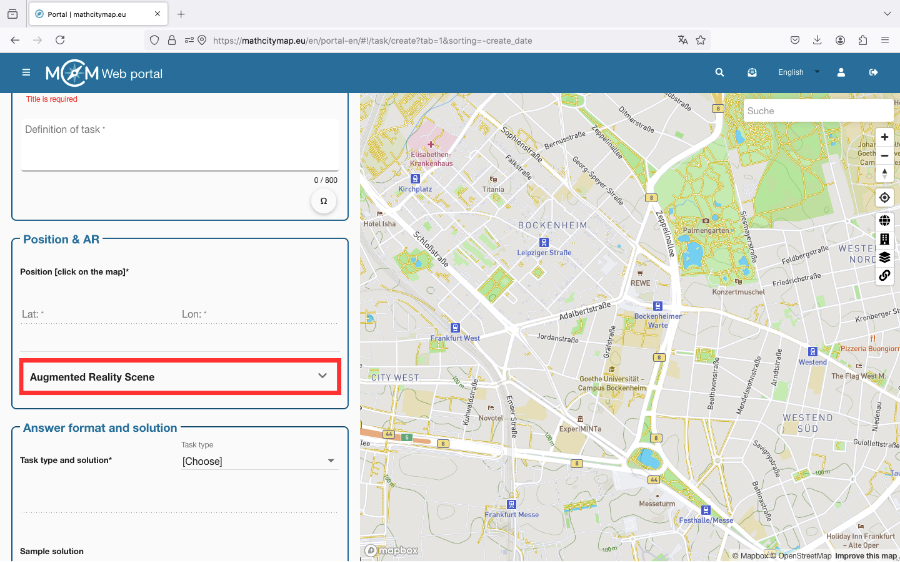
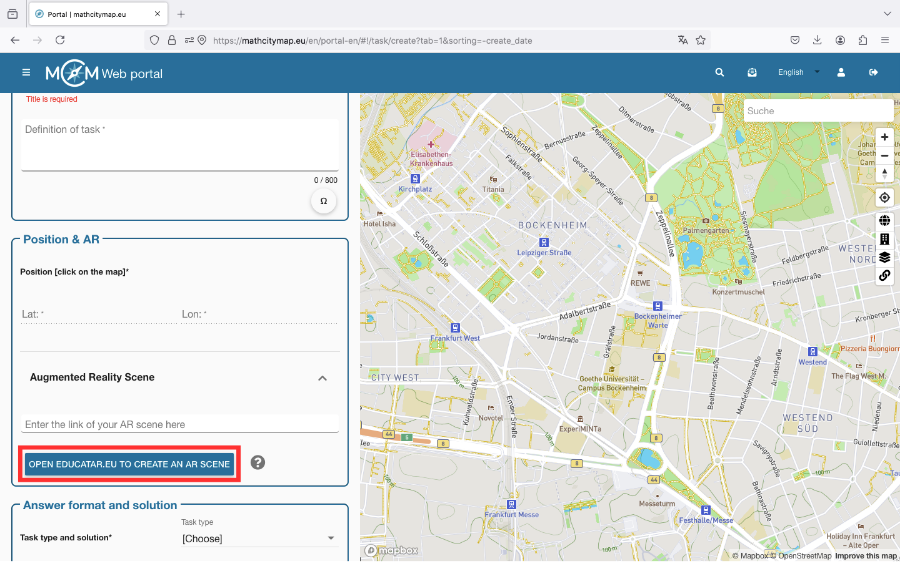
To add an augmented reality scene to a task, you must then click on the “Augmented reality scene” field in the “Position & AR” box.
Step 2 – Create AR Scene

Click on the “Open Educatar.eu for a new AR scene” box. You will be redirected to the Educatar.eu website.

There you can create an augmented reality scene that allows you to display virtual content (text, images, etc.) against a real background using a smartphone.

You can find a detailed tutorial on this under this Link (Website MaSCE³-Project).

Step 3 – Insert link in MCM

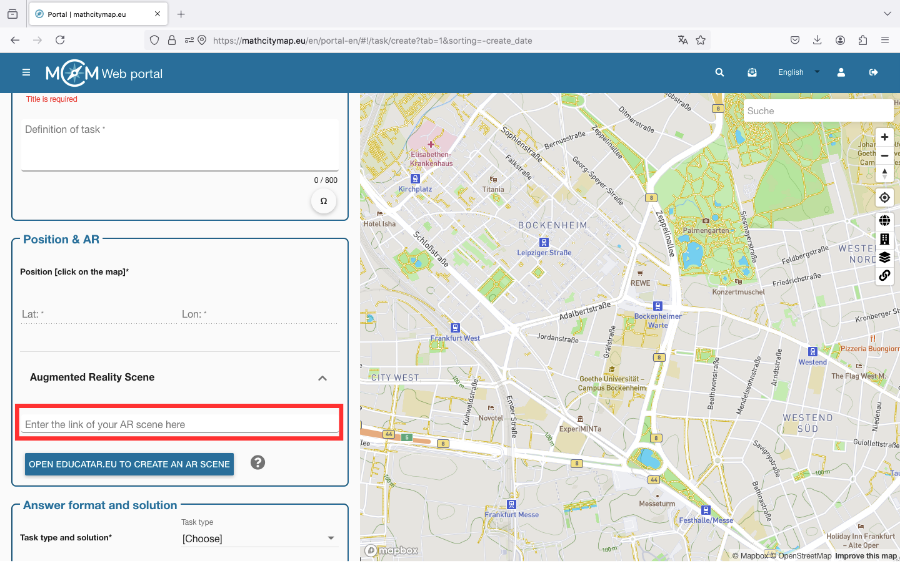
Once you have created a scene on educatar.eu, you can enter the URL of the scene in the appropriate field.

MCM users can then open it via the MCM app. 
Further Tutorials

Profile

Your profile in the MathCityMap web portal contains personal data and statistics on your activities in the portal. Other MCM users can find out which tasks you have published, for example. Here is a more detailed description of how you can use your profile.

Step 1 – Open Profile

To open your profile, click on the “Profile – Personal data, statistics” field on the start page. You can also select this from the menu bar on the left.

You will then see your name, your profile picture and your timeline.  

Step 2 – Edit Profile

If you want to edit your profile, click on the pencil icon in the top right-hand corner.

Here you can add a profile picture or specify your occupation and add awards.

Click on “Save changes” to save your settings.  

Step 3 – Activities in the Portal

In your timeline, you can see your activities in the portal in chronological order. The most recent activity is always displayed at the top.

In addition to your timeline, you can also view your public tasks and trails separately. This can be a helpful view when searching or sharing.

You can also see who you have subscribed to and your subscribers. If you follow someone, you will be informed about their activities in your newsfeed and vice versa.  

Step 4 – Awards

You can earn various awards by participating in the web portal. You will find all possible awards and those you have already achieved under the medal symbol.

As soon as you have received one or more awards, you can also add them directly to your profile so that they appear next to your profile picture. To do this, click on the pencil icon.

You can select up to three awards and decide whether they should be in first, second or third position.

Finally, confirm by clicking on “Save changes”. 

Step 5 – Profiles of other Members

All public tasks and trails are always accompanied by the name of the person who created them. By clicking on the person’s name, you will be taken to the corresponding profile.

This is basically structured like your own, but you will find additional icons at the top right.

You can follow and unfollow a person by clicking on the bell icon.

If you want to request a person’s contact details, you need to click on the business card symbol. The other person must first agree to the transfer, so it may take some time before you receive it.

You can also leave a public message on the person’s timeline. To do this, click on the paper airplane icon and enter your message.  

Weitere Anleitungen

Manage Learning Groups

You can edit your learning group at a later point or monitor the progress of your learners. Here is a step-by-step guide to managing your learning group:

Step 1 – Edit Learning Group

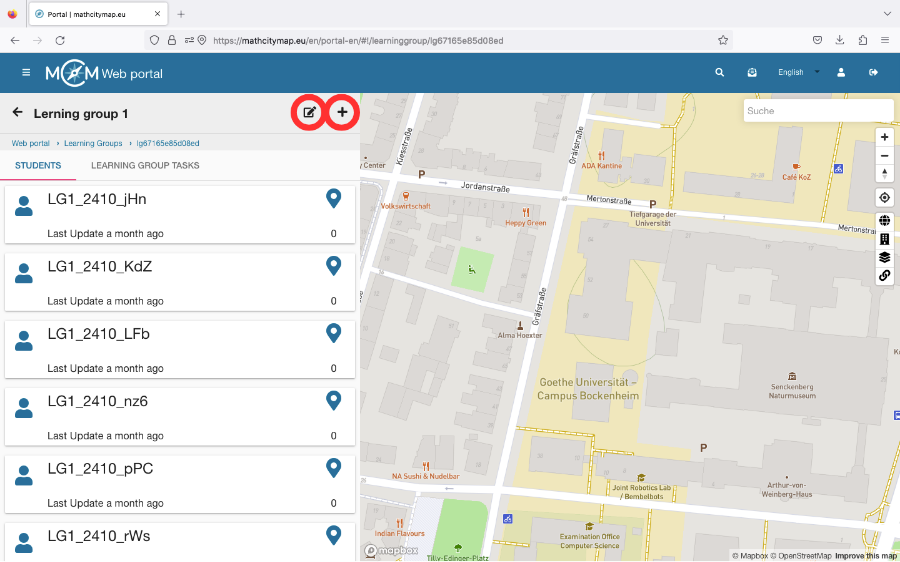
Click on the learning group that you want to edit.

You will see a plus symbol at the top right. This allows you to add new learners to your learning group.

If you click on the edit symbol, you can edit the title and abbreviation of your learning group.

You can also delete the learning group here if necessary.  

Step 2 – Tasks of the Learning Group

You can see which tasks have already been created and by whom.

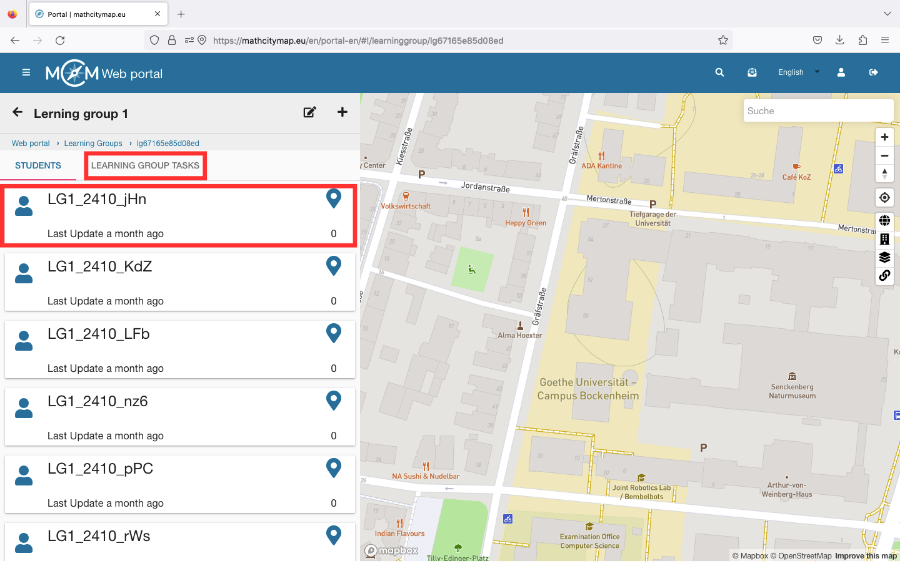
Either click on individual learners to see their progress or click on “Learning group tasks” to see all the tasks that have already been created.

Click on a task to see more details. 

Further Tutorials

Community

Partner schools play an important role in the MathCityMap project. These schools create new tasks themselves and put the concept of outdoor math learning into practice. In the web portal, teachers can join their school and participate in joint activities.

Step 1 – Partner schools

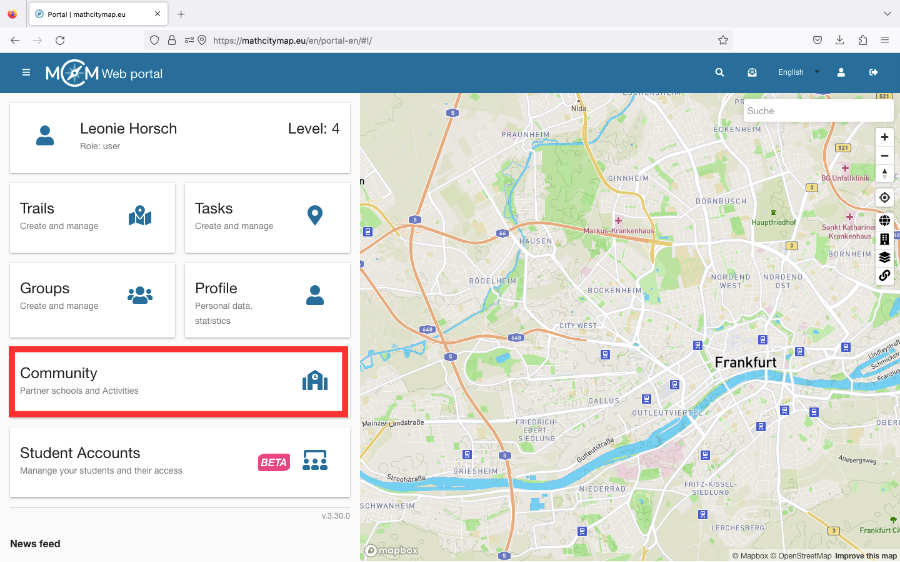
Click on the “Community – Partner schools and activities” field on the homepage or select “Community” in the menu bar on the left-hand side.

A list of partner schools will open, sorted in alphabetical order according to the country in which they are located.

If you click on a school, you will find an e-mail address as a contact and the location of the partner school.

Students and teachers can also join their school.  

Step 2 – Activities

There are various activities that teachers from partner schools can take part in to learn about the development of the project or to have the various applications explained to them.

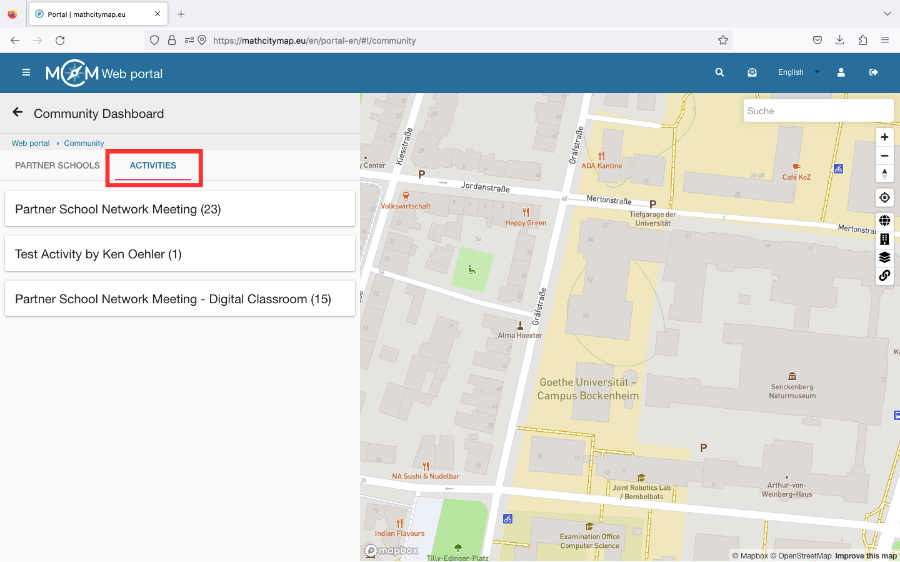
To see if and when an activity is offered, click on “Activities” under “Community”.

Then click on the desired activity. If you are authorized to participate, the field “Participate in this activity” will appear.

Step 3 – Become a new Partner School

To become a partner school, you need to create 15 tasks and two trails for different grades near your school.

These should be published in our system and reviewed by the school’s math teachers.

They should also have been downloaded at least five times by learners.

If these conditions are met, an application to become a partner school can be sent to info@mathcitymap.eu.

This should contain the codes of the trails as well as a short report on the experience with MCM.

Further Tutorials

Create Learning Groups

Creating learning groups in the MathCityMap web portal allows learners to create and share tasks themselves. Here is a step-by-step guide on how to create learning groups:

Step 1 – Open the learning group area

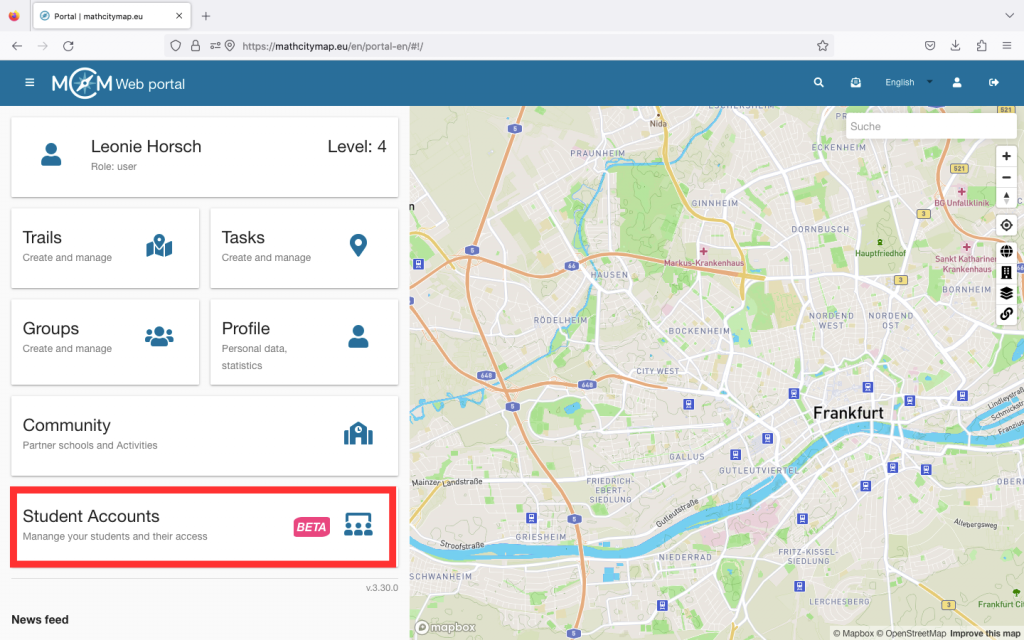
Click on the “Student accounts – Manage your students and their access” field on the start page or select “Learning groups” in the menu bar on the left-hand side.

The page with your learning groups opens.

Step 2 – Create a learning group

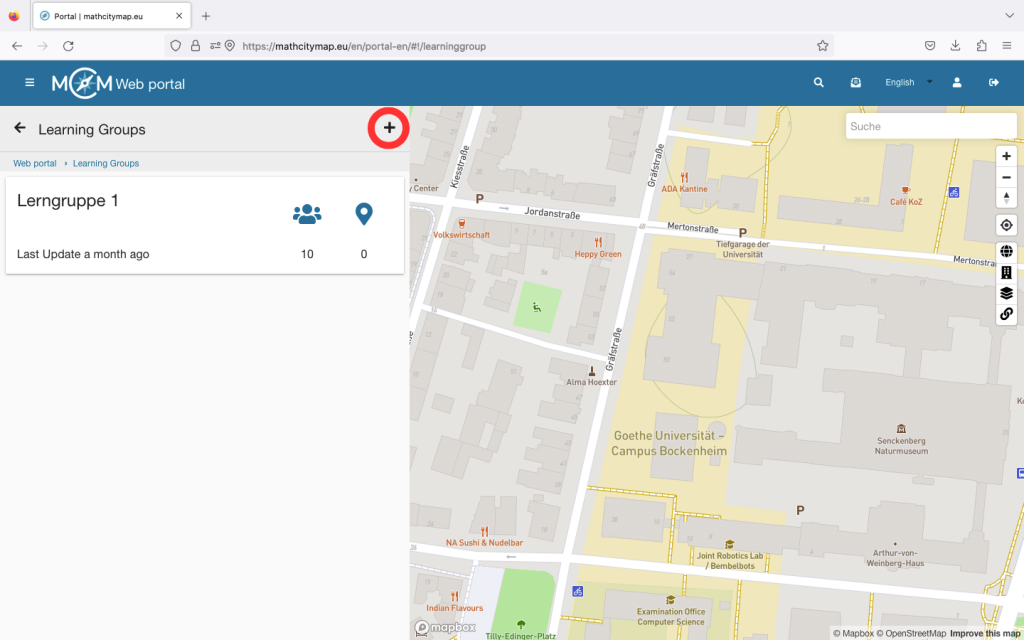
You will find a plus symbol at the top right. Click on it to start creating a new learning group.

You will then be asked to enter the basic data for your learning group. Choose a unique name and enter an abbreviation for the learning group.

You must then enter the number of learners. Finally, click on “Create learning group”.

You will then be shown the access data to the web portal for the learners. Share these with your learning group so that the learners can log in to the web portal.

Further Tutorials

Publish Content

You can publish content in the MathCityMap web portal so that other MCM users can also see and try it out. Please note the following steps:

Step 1 – Complete your task / trail

Only tasks that fulfill all technical requirements can be published. Therefore, make sure that you fill in all fields and also add a title picture.

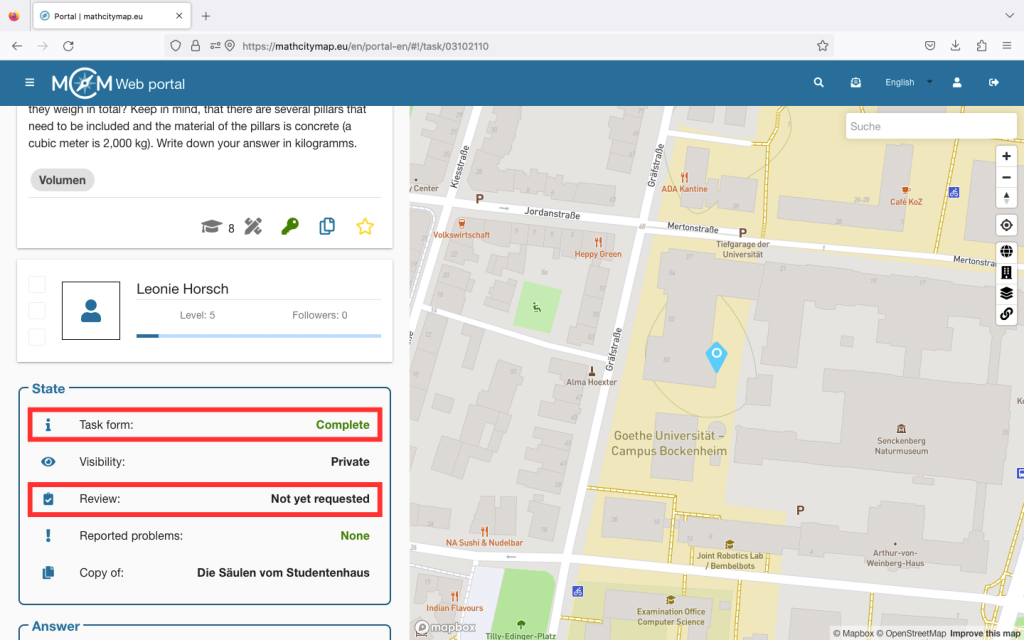
If you click on your task, you can see under “State” whether your task form is complete or not. The same applies to your trails.

Step 2 – Request publication

You need a review to publish a task. This ensures that not only all technical requirements are met, but also that the quality of the task, the sample solution and the notes are appropriate.

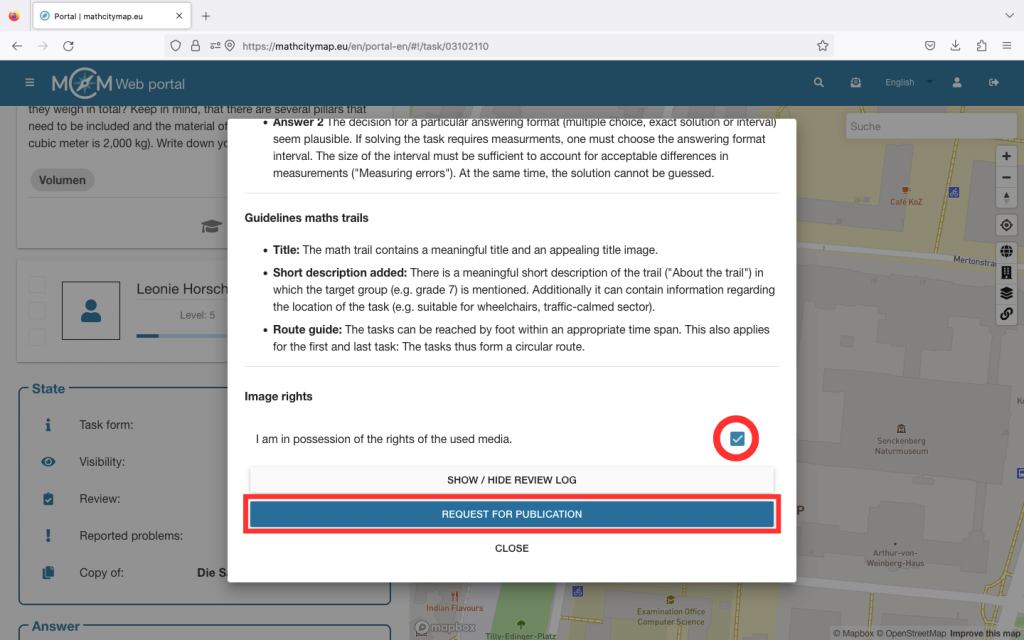
Click on “Review” under “Status”. A window will open with all the information regarding the requirements for your task or trail.

Make sure that you have the image rights for the media you are using and confirm this by ticking the box at the bottom.

Then click on “Request for publication”. This process may take a few days.

Further Tutorials

Manage Digital Classroom

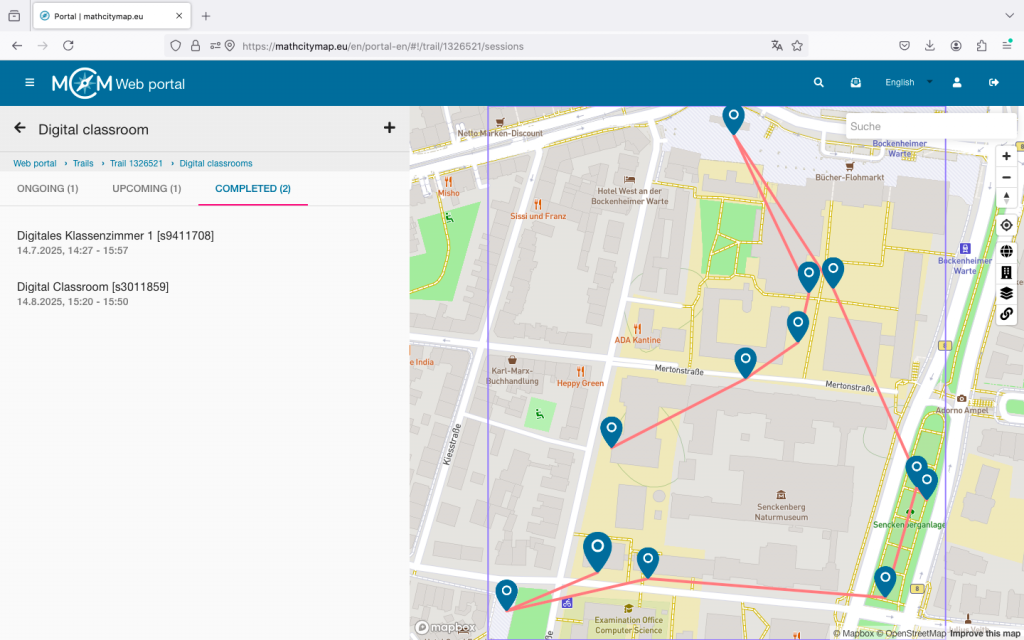
The digital classroom offers many possibilities. Here you will learn how to observe, manage, and support your digital classroom live during, before or after the math trail.

Step 1 – Switch to the observation view

Open the trail for which you have created your digital classroom and click on the corresponding icon.

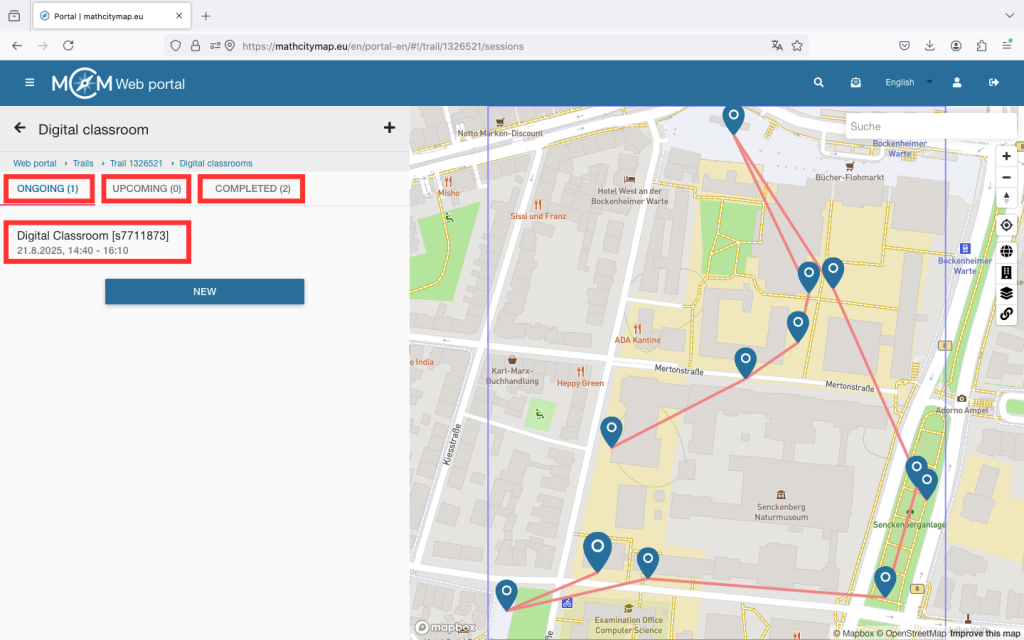
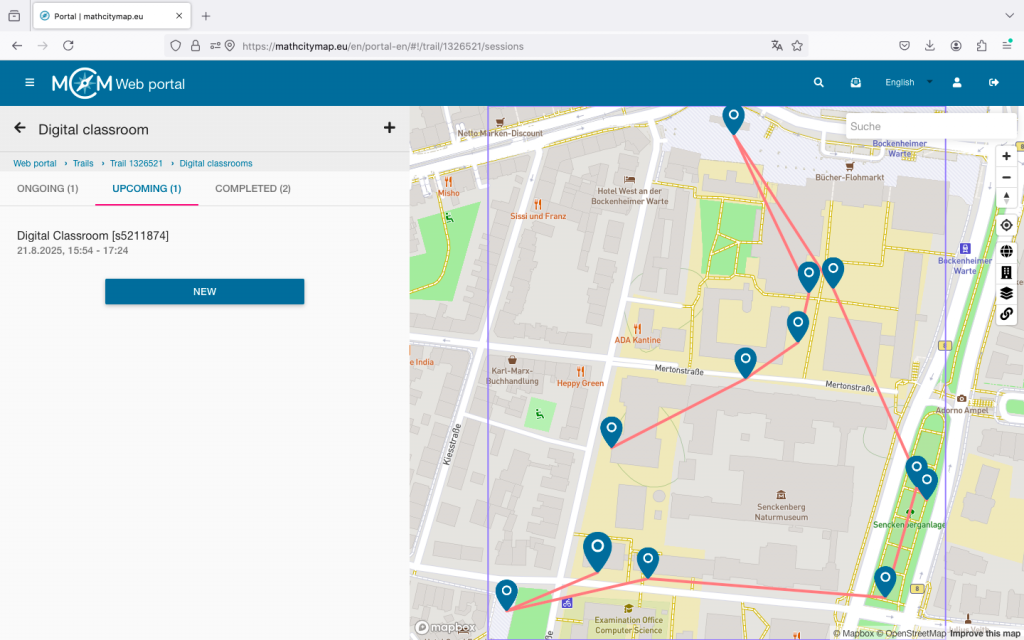
Depending on when you want to open the digital classroom view, you will find your digital classroom under “Ongoing,” “Upcoming,” or “Completed.”

Click on the desired digital classroom to open the observation view.

Step 2 – Overview in the “Ongoing” observation view

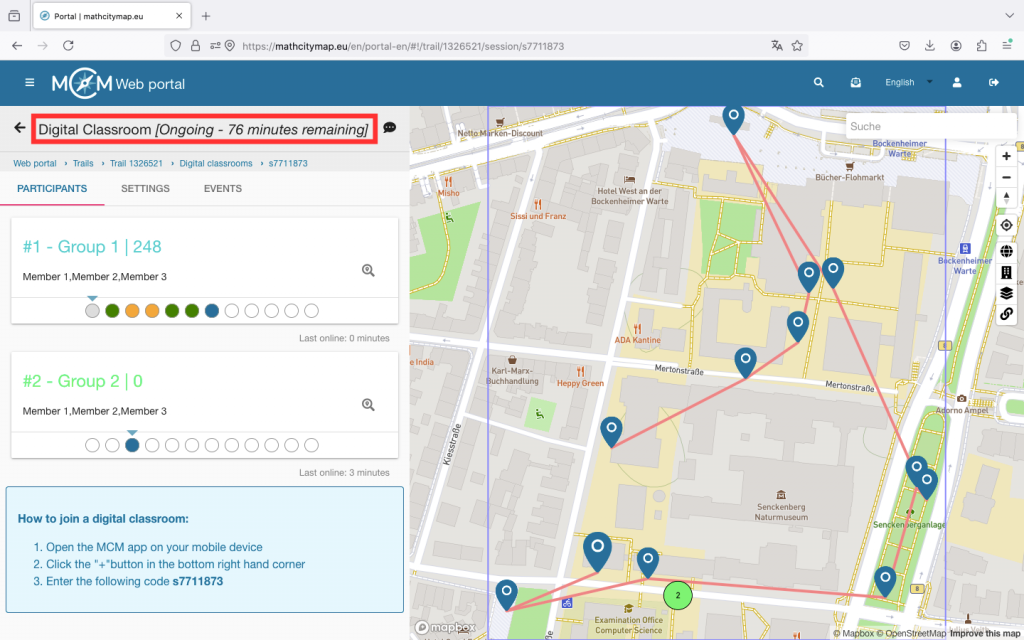
At the top of the view, you can see how many minutes are left, meaning when the digital classroom will automatically end.

The view shows a list of all joined groups with names, status, and points on the left side. The number after the hashtag indicates the order in which the groups joined. The group with the most points is always at the top of the list.

For each group, you can see round fields that represent the different tasks. A white field means the task has not yet been viewed. Blue means the task has just been opened. Red, yellow, and green stand for incorrectly, satisfactorily, or well-solved tasks. A grey field means that this group has skipped the task.

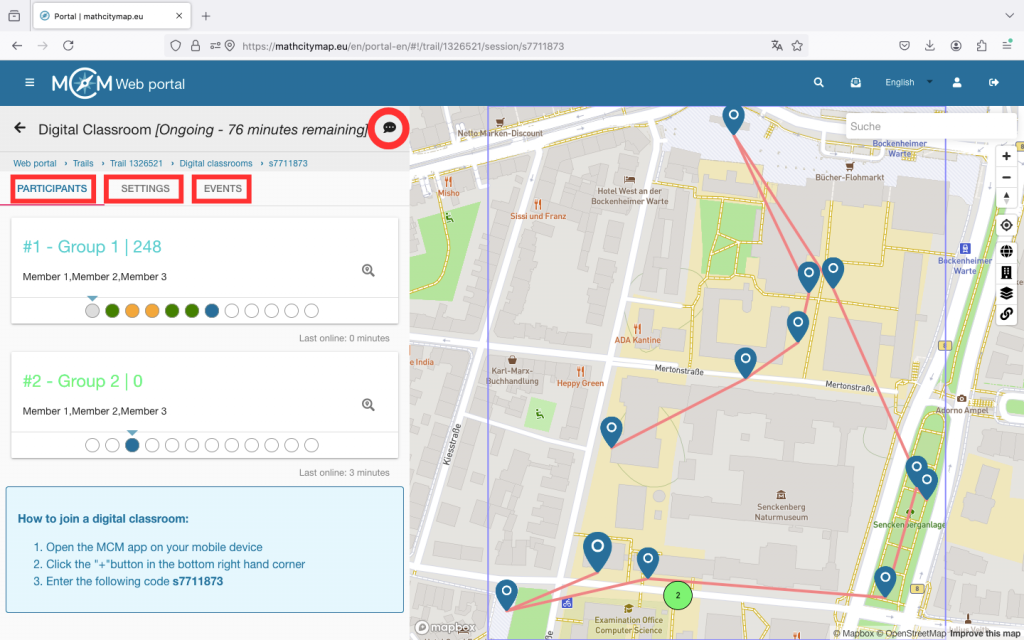
If you click on a group, you will access the chat. Here, you can communicate with the participants via message, voice note, or pictures throughout the session. Under “Events,” you can see how the learners proceed — for example, whether they use hints and whether they need multiple attempts to solve a task.

On the right side of the view, there is a map showing the tasks and the joined groups (provided they activate GPS). Through numbering and colour coding, the groups on the map can be easily found again in the list.

Step 3 – Additional functions in “Ongoing”

At the top right, there is a chat icon. By clicking on it, you can send a message to all participants at once. Use this, for example, for time-related hints.

Under “Settings,” you can, for instance, extend the session duration or adjust your view. You will also find some information about your digital classroom there.

Under “Events,” you can see all the actions of the joined groups. For a more compact view, select individual groups and then go to “Events.”

To remove members, click on the corresponding group and then click on the X in the top right. Confirm the action with “OK.”

Step 4 – Manage upcoming digital classrooms

Up to 30 minutes before the start of the session, you can adjust the settings of your digital classroom.

The same settings can be edited as when creating the digital classroom.

During the session and in the 30 minutes beforehand, editing is no longer possible.

Step 5 – Manage completed digital classrooms

Up to 6 months after the session, the collected data of the digital classroom can still be viewed.

For example, you can gain insights into which tasks were easy for the learners and which may have caused problems more frequently. These can be discussed again during a joint review session.

Weitere Anleitungen

Create a Digital Classroom

In the MathCityMap web portal, a digital classroom can be set up for a math trail, offering organizational and educational tools. Here you will find a step-by-step guide to creating a digital classroom:

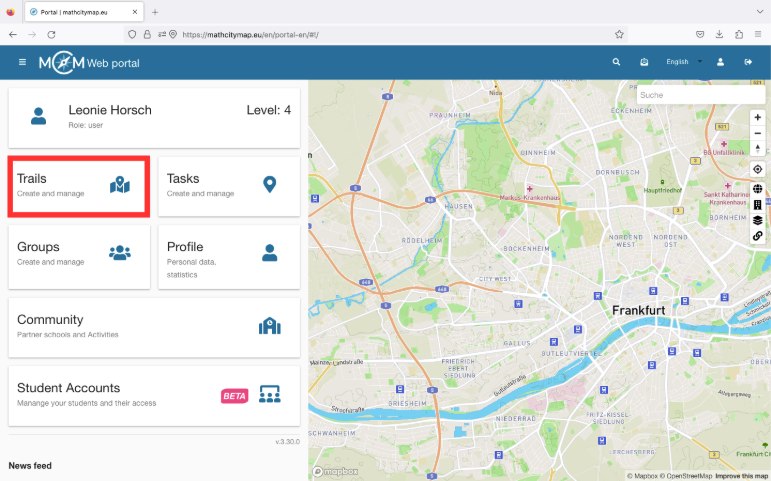
Step 1 – Select an Existing Trail

To select an existing trail, click on the “Trails – Create and Manage” field. You can also click on “Trails” in the menu bar on the left.

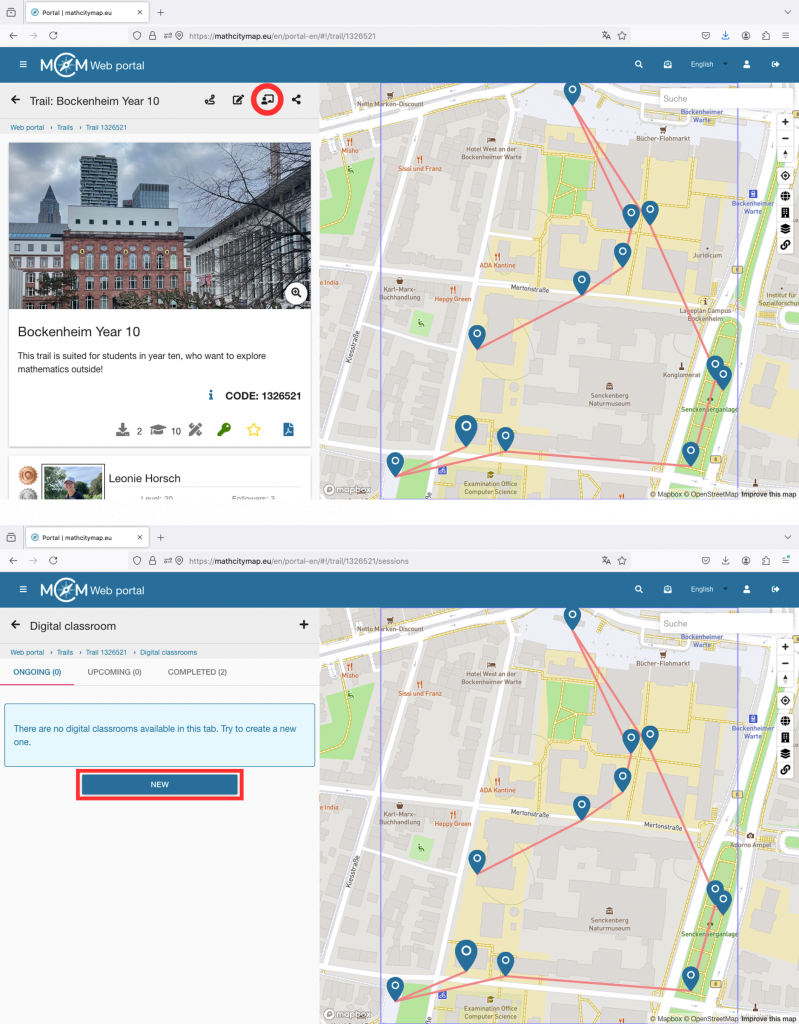
A view with your trails will open. Click on the desired trail to open its detailed view.

You can also create a digital classroom with public trails. Click on the desired trail to open its detailed view.

Step 2 – Switch to the “Digital Classroom” area

In the top left, you will see an icon showing a figure in front of a blackboard. Click on it to open the digital classroom section.

Here, you’ll see an overview of already created classrooms (if any), as well as a “New” button to create a new digital classroom.

Step 3 – Create a new digital classroom

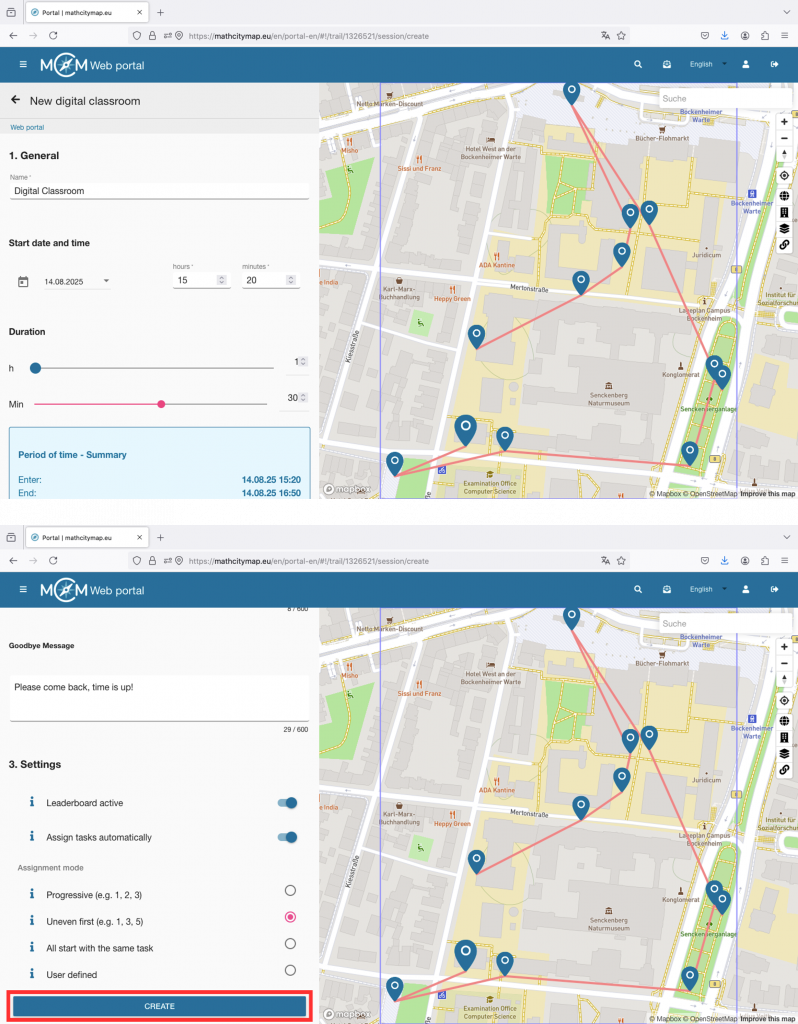
After clicking “New,” the digital classroom editor will open.

First, fill out the general information: The name of the digital classroom will be displayed to the learners in the app, select the date and time for the session (learners can join 30 minutes before the start), and set the duration of the digital classroom (after the time has expired, the session will end for all participants).

You can also write a welcome and farewell message. These will be shown to all participants at the beginning and end or when leaving the session.

In the settings, you can enable or disable the leaderboard. The leaderboard is a local ranking list and shows your team’s score, as well as the score of the team ahead and the team behind.

With the automatic task assignment feature, you can control whether all participants should start with the same task or whether they should first spread out among the tasks.

Click on “Create” to save the settings. The digital classroom will then appear under “Ongoing” or “Upcoming” depending on the start time. In the square brackets, you’ll find the associated code starting with an “s.” Share it with your learners so they can join the digital classroom.

Weitere Anleitungen

Draft and Task Group

In the MathCityMap web portal, you can prepare tasks in draft mode before you finish creating the task. You can also bundle tasks that are all related to the same object into task groups. Here is a step-by-step guide on how to create drafts and task groups:

Step 1 – Create a new task

Go to “Tasks – Create and manage” or select “Tasks” in the menu bar on the left-hand side.

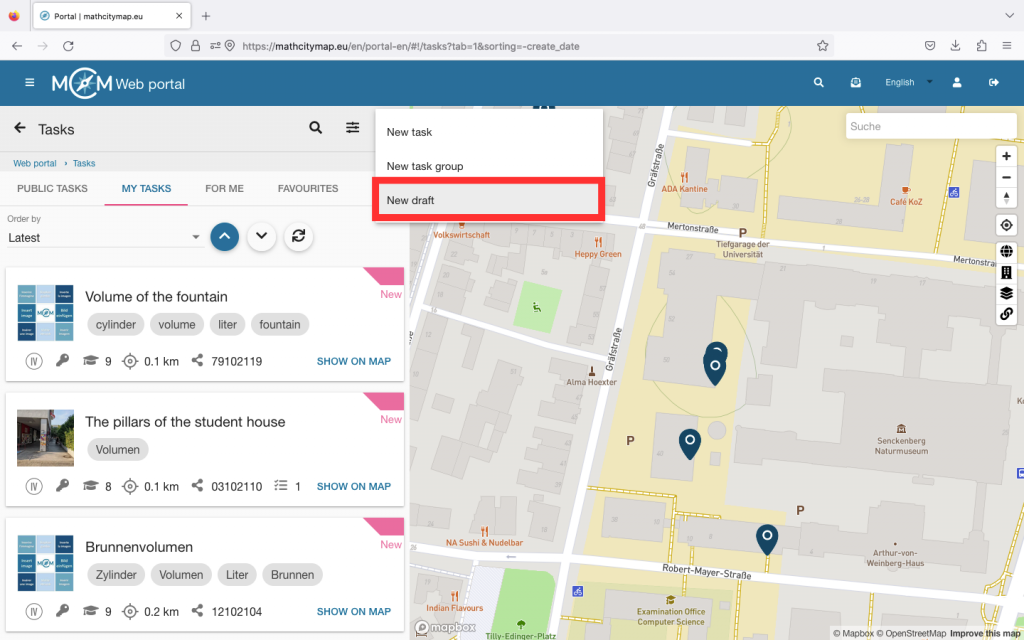
Then click on the plus symbol at the top right and select “New draft”.

You will then be asked to enter basic data for your task.

Click on “Create” to save your draft. 

Step 2 – Edit drafts

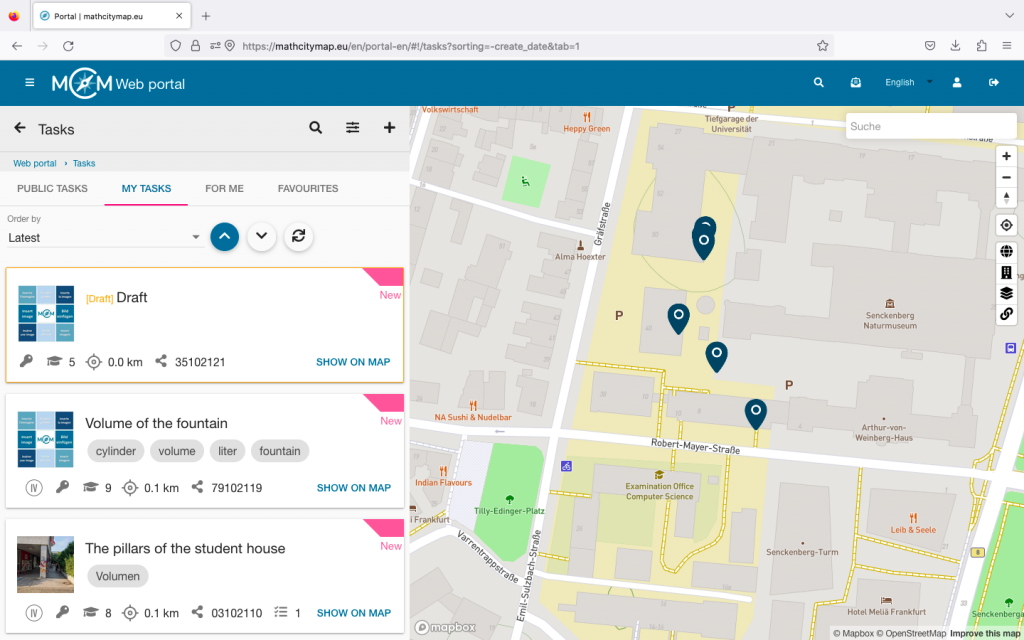
Like all other tasks, you can find drafts in your profile under “My tasks”. All drafts are framed with a yellow box.

If you want to complete the task, you can simply click on it and edit the task.

Once you have entered the missing information, click on “Save”.

Step 3 – Create task groups

Go to “Tasks – Create and manage” or select “Tasks” in the menu bar on the left-hand side.

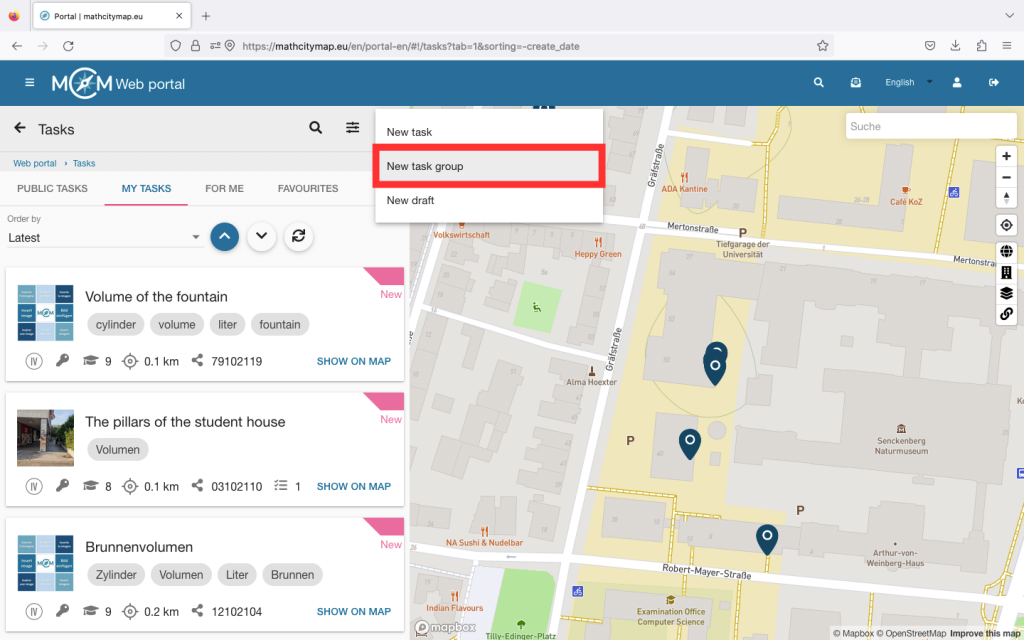
Then click on the plus symbol at the top right and select “New task group”.

You will then be asked to create the first task in your task group.

Once you have entered all the information, click on “Create” at the bottom.

Step 4 – Add subtasks

To complete your task group, you need to create additional subtasks.

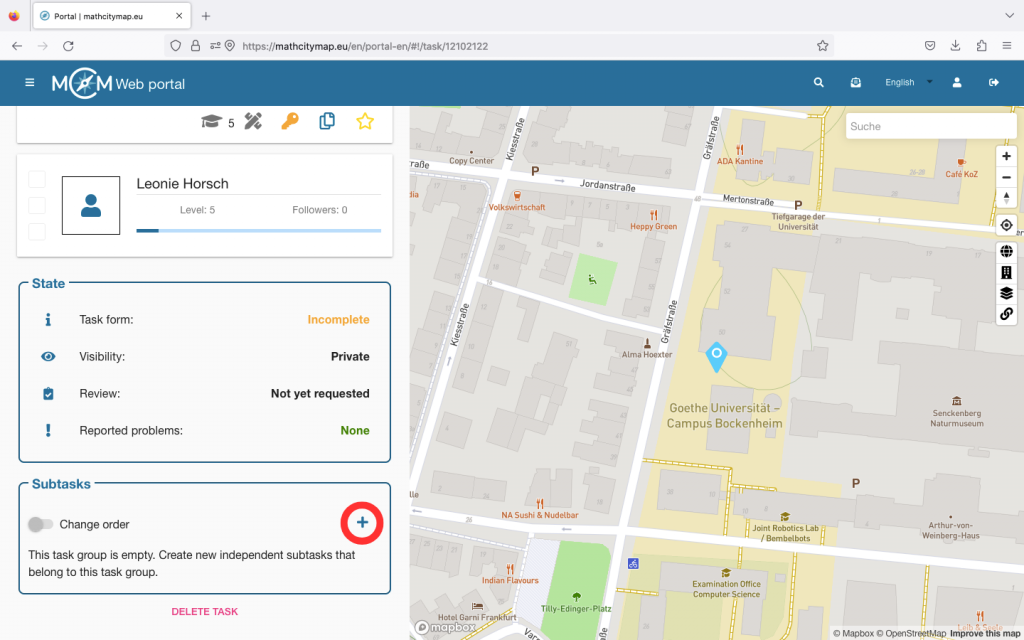
If you click on your task group and scroll to the bottom, you will be taken to the “Subtasks” section. Click on the plus symbol to add further subtasks to your task group.

The page for creating a task opens again. Click on “Create” to save the subtask.

Finally, you can change the order of the subtasks. To do this, click on the “Change order” button and move the subtasks so that they are in the right place.

Then confirm that you want to save the changes.

Further tutorials

Support Tasks

Support tasks are additional tasks designed to help learners better understand more complex tasks or calculate intermediate steps. These tasks can facilitate the learning process by focusing on and supporting partial aspects of a main task. Here is a step-by-step guide to creating and using support tasks:

Step 1 – Open task area

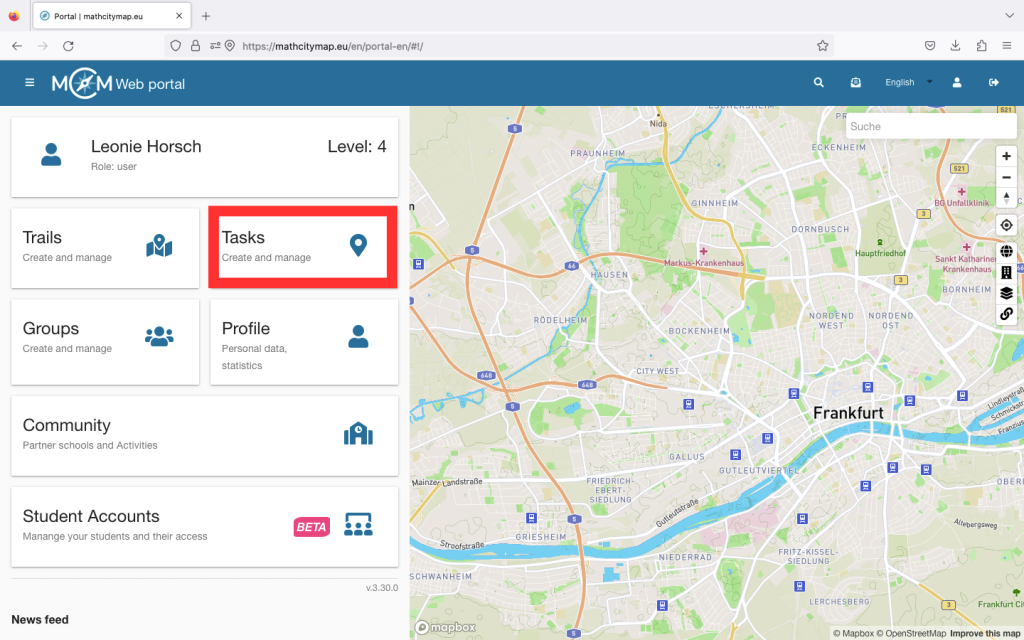
Go to “Tasks – Create and manage” and under “My tasks” select the task for which you would like to create support tasks.

This task then becomes the main task and can be subdivided by one or more support tasks.

Click on the desired task and then scroll to the bottom.

Step 2 – Create a support task

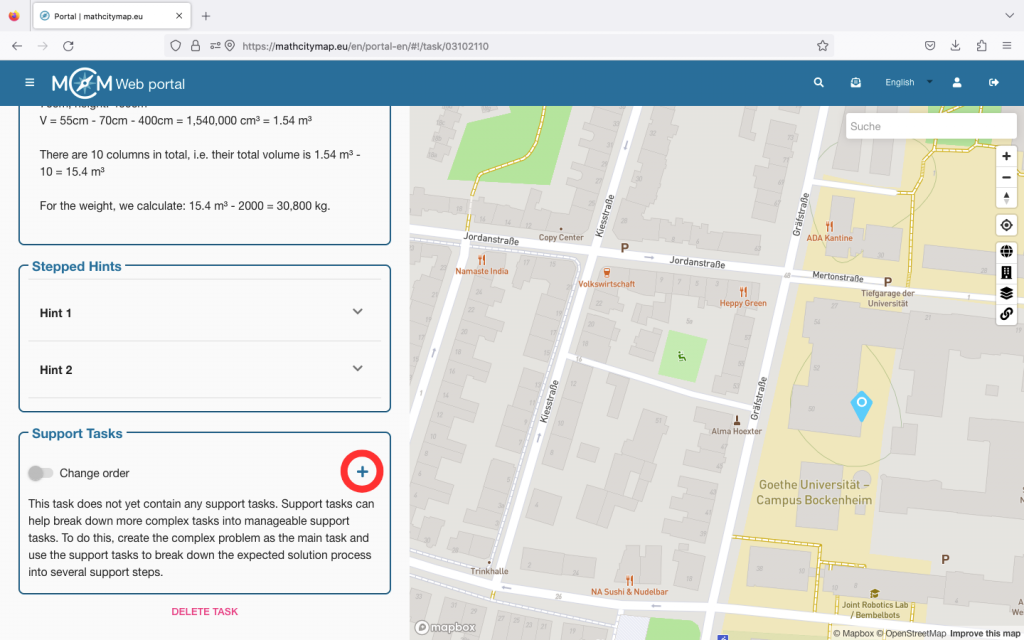
You will see a box with the title “Support tasks”. Click on the plus symbol on the right-hand side to create a new support task.

You will then be asked to enter all the basic information again, as when creating the main task.

You only do not need to enter the location, as this is the same as the one of the main task.

Once you have entered all the information, click on “Create”.

Step 3 – Multiple support tasks

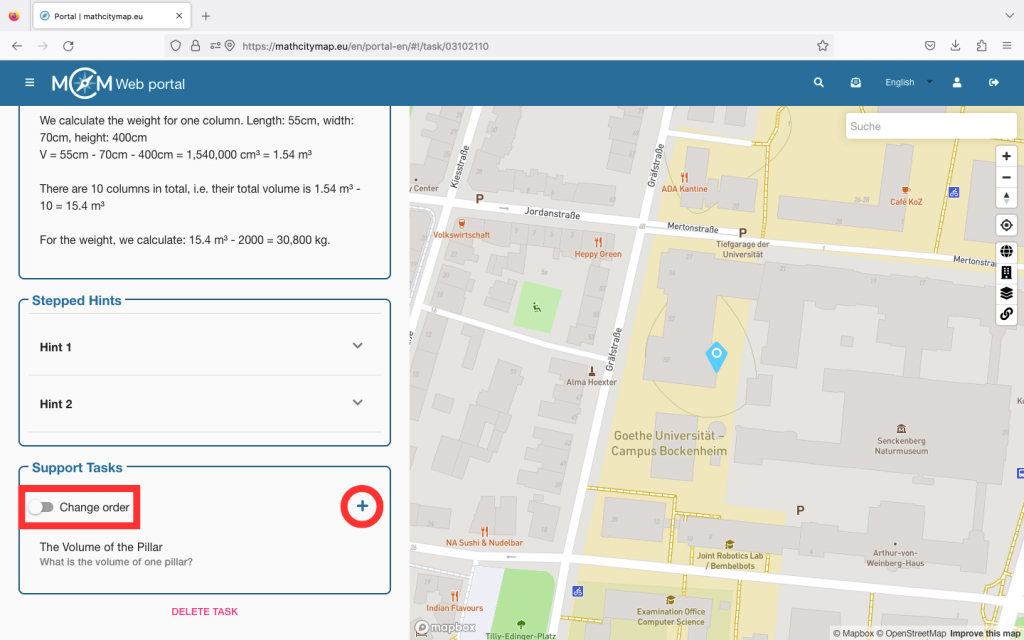
For complex tasks, it can be helpful to create several support tasks. To do this, click on the plus symbol again and create another support task.

You can then determine the order in which the tasks should be processed. To do this, click on the “Change the order” button and move the support tasks so that they are in the right place.

Then confirm that you want to save the changes.

Further Tutorials